Mengajukan Makalah
Mengajukan makalah ke konferensi mungkin terasa menakutkan — terutama jika ini pertama kalinya Anda. Panduan ini memandu Anda melalui setiap langkah proses di Confychair, dari menemukan konferensi hingga menerima konfirmasi pengajuan. Ikuti satu langkah demi satu.
1. Menemukan Konferensi
Halaman publik konferensi menampilkan semua yang Anda butuhkan sebelum memutuskan untuk mengajukan:
- Call for Papers (CFP) — tema, ruang lingkup, dan topik yang dicari konferensi
- Batas waktu pengajuan — tanggal dan waktu (dalam zona waktu lokal konferensi) di mana makalah Anda harus diajukan
- Panduan pengajuan — batas halaman, persyaratan format, format file yang diterima
- Daftar topik — bidang subjek yang dicakup konferensi

2. Sebelum Mengajukan
Sedikit persiapan sangat membantu. Sebelum mulai mengisi formulir, pastikan Anda menyiapkan hal-hal berikut:
- Akun Confychair — jika belum memilikinya, daftar di confychair.org/register. Pendaftaran gratis dan hanya membutuhkan waktu sebentar.
- File makalah Anda — periksa halaman konferensi untuk format file yang diperlukan (PDF atau DOCX, tergantung konferensi), batas halaman, dan persyaratan anonimisasi (beberapa konferensi mengharuskan Anda menghapus nama penulis dari file untuk review blind).
- Informasi co-penulis — untuk setiap co-penulis, Anda memerlukan:
- Sapaan (opsional — mis. Dr., Prof.)
- Nama depan dan nama belakang
- Sufiks (opsional — mis. PhD, Jr.)
- Afiliasi institusi
- Detail afiliasi (opsional — mis. fakultas, departemen, lab)
- Alamat email
- Negara
3. Memulai Pengajuan
SUBMIT_PAPERS) sebelum dapat mengajukan. Jika belum mendaftar, lakukan itu terlebih dahulu — lihat Mendaftar untuk Konferensi.
Jika batas waktu pengajuan telah berlalu, formulir terbuka tetapi menampilkan peringatan dan dinonaktifkan. Penyelenggara dapat mengesampingkan ini dengan paksa-buka — jika Anda yakin seharusnya masih bisa mengajukan, hubungi mereka langsung.
4. Mengisi Formulir Pengajuan
Formulir pengajuan dibagi menjadi bagian-bagian bernomor. Bilah kemajuan di bagian atas menampilkan berapa banyak bagian yang selesai. Kerjakan secara berurutan — tombol kirim hanya aktif ketika semua bagian selesai dan Anda mencentang kotak konfirmasi di bagian bawah.
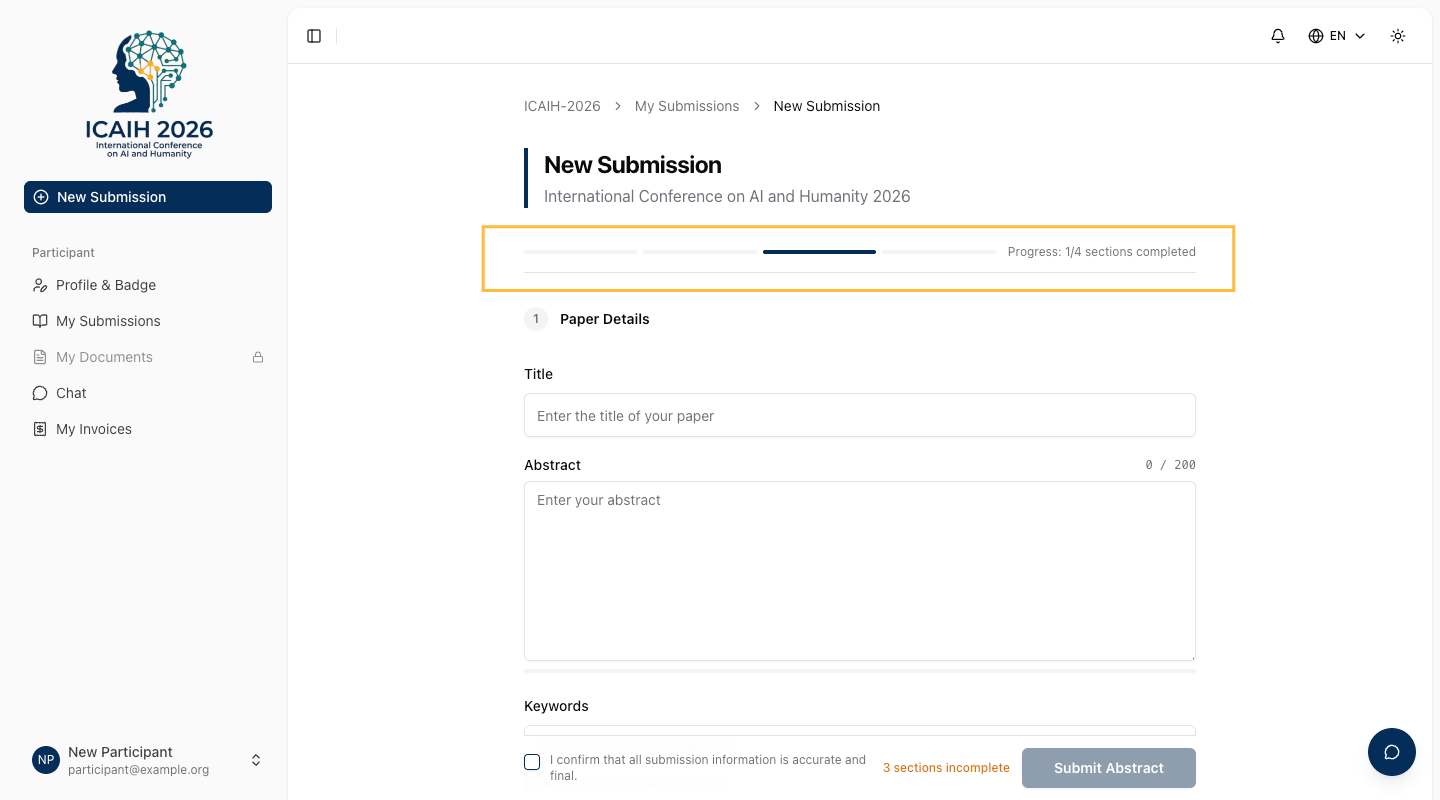
Bagian 1 — Detail Makalah
machine learning, NLP, deep learning) untuk menambahkan beberapa kata kunci sekaligus. Setidaknya satu kata kunci diperlukan.
Bagian 2 — Topik Penelitian
Pilih semua topik dari daftar yang telah ditentukan konferensi yang relevan dengan makalah Anda. Anda harus memilih setidaknya satu. Jika makalah Anda mencakup beberapa topik, pilih semua yang berlaku — ini membantu penyelenggara menugaskan reviewer yang tepat.
Topik muncul sebagai kartu yang dapat dipilih. Topik yang dipilih disorot.

Bagian 3 — Penulis
Bagian ini mencantumkan semua orang yang berkontribusi pada makalah.
- Entri Anda sendiri sudah diisi otomatis berdasarkan profil Confychair dan data pendaftaran Anda untuk konferensi ini. Tinjau dan perbarui kolom apa pun jika diperlukan.
- Klik "Tambah Penulis" untuk setiap penulis tambahan.
- Untuk setiap penulis, isi: sapaan (opsional), nama depan, nama belakang, sufiks (opsional), email, afiliasi, detail afiliasi (opsional), dan negara.
- Tandai tepat satu penulis sebagai Penulis Koresponden — klik ikon bintang pada kartu penulis untuk menetapkannya. Penulis koresponden menerima komunikasi resmi dari konferensi.
- Gunakan panah atas/bawah pada setiap kartu penulis untuk mengurutkan ulang penulis. Urutan di sini adalah urutan yang akan muncul di program.
- Formulir memvalidasi bahwa:
- Semua email penulis unik (tidak ada duplikat)
- Anda (yang mengajukan) terdaftar sebagai salah satu penulis — email akun Anda harus muncul dalam daftar penulis
- Setidaknya satu penulis ditandai sebagai koresponden
Beberapa konferensi juga mengumpulkan kolom berikut pada setiap kartu penulis (kolom ini hanya muncul saat konferensi mengaktifkan mode kepatuhan penerbit):
- ORCID — ORCID iD penulis (mis.
0000-0002-1825-0097). Bisa bersifat wajib. - Peran CRediT — peran kontribusi spesifik setiap penulis (mis. Konseptualisasi, Penulisan, Kurasi Data). Bisa bersifat wajib.

Bagian 4 — Deklarasi AI & Etika
Bagian ini selalu berisi dua item:
-
Kotak centang penggunaan AI — Centang ini jika Anda menggunakan alat AI Generatif (seperti ChatGPT) untuk menyusun, menulis ulang, atau menghasilkan konten. Jika dicentang, kolom teks muncul di mana Anda harus mendeskripsikan bagaimana AI digunakan (mis. "ChatGPT digunakan untuk meningkatkan tata bahasa dan alur terjemahan bahasa Inggris").
-
Persetujuan AI penyelenggara — Anda harus mencentang kotak ini untuk mengakui bahwa penyelenggara dapat menggunakan alat AI untuk pemeriksaan kemiripan, bantuan penugasan reviewer, atau ringkasan konten. Kotak ini wajib dan formulir tidak dapat dikirimkan tanpanya.

- Etika — Kotak centang untuk menyatakan apakah penelitian Anda memerlukan persetujuan etika. Jika dicentang, kolom muncul untuk nomor referensi persetujuan dan pernyataan etika.
- Pendanaan — Deklarasikan sumber pendanaan (nama pemberi dana + nomor hibah). Centang "No funding was received" jika tidak ada.
- Deklarasi — Kolom dropdown untuk pernyataan Konflik Kepentingan, Ketersediaan Data, dan Ketersediaan Kode, beserta kotak centang persetujuan untuk data peserta dan publikasi.
Bagian 5 — File Makalah
Bagian ini muncul setelah deklarasi AI dan selalu ada untuk konferensi pengajuan langsung. Untuk konferensi abstrak-dahulu, hanya muncul setelah abstrak Anda diterima (lihat Bagian 6 di bawah).
5. Mengajukan
Kartu ringkasan kecil muncul menampilkan jumlah penulis, topik, dan kata kunci yang telah Anda masukkan.
- Judul, Abstrak & Kata Kunci
- Setidaknya 1 topik dipilih
- Info penulis lengkap
- Email penulis unik
- Pengajuan harus menjadi penulis
- Penulis koresponden ditugaskan
- Deklarasi AI & Etika selesai
- File makalah diunggah (jika berlaku)
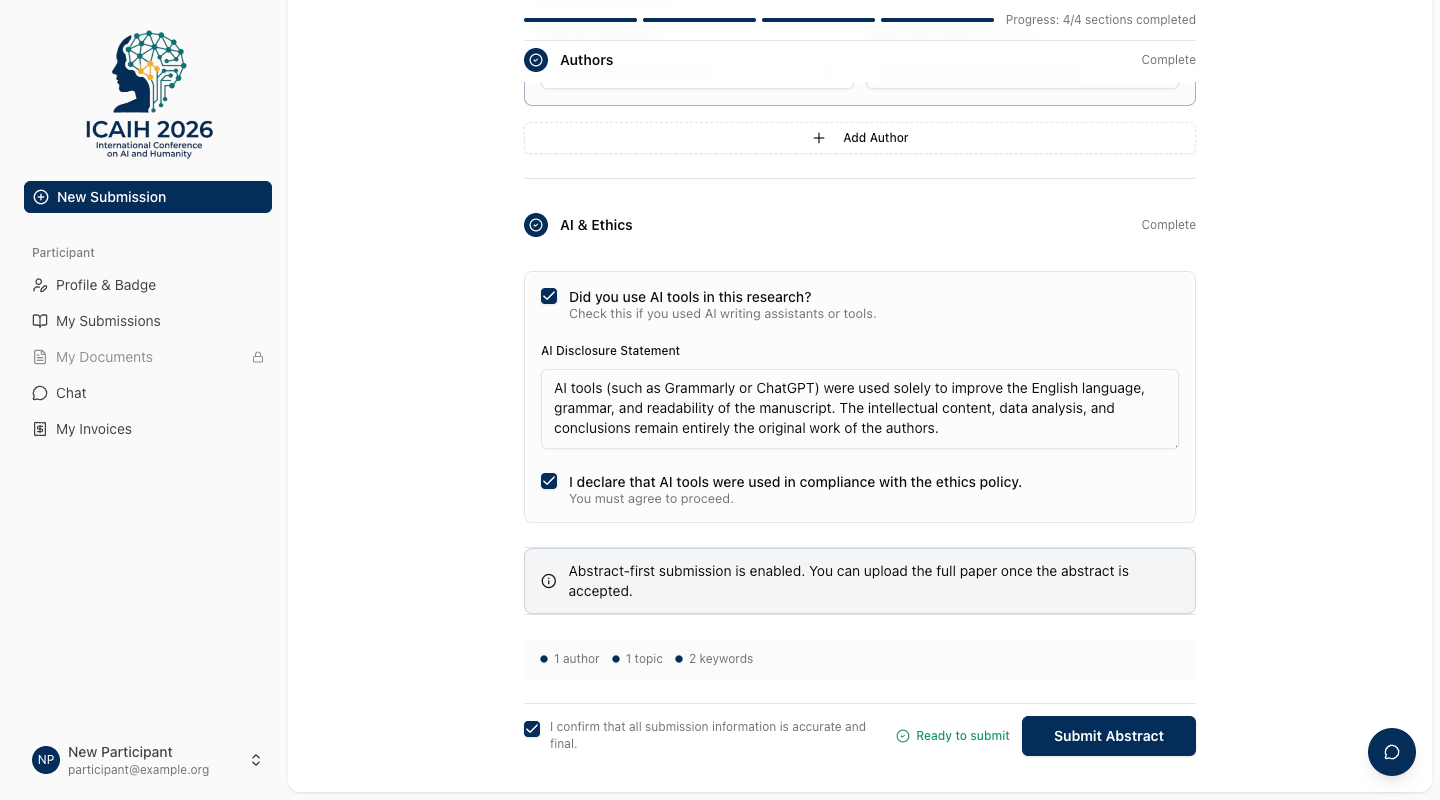
Setelah semua item selesai dan Anda mencentang kotak konfirmasi, klik tombol kirim. Label tombol berubah berdasarkan konteks Anda:
| Konteks | Label tombol |
|---|---|
| Pengajuan baru hanya dengan abstrak | Kirim Abstrak |
| Pengajuan baru dengan file makalah | Kirim Makalah |
| Mengedit — hanya metadata yang berubah | Perbarui Metadata |
| Mengedit — metadata dan file berubah | Perbarui Metadata & File |

Setelah mengirimkan, Confychair akan:
- Menetapkan nomor pengajuan (mis. SUB-42) pada pengajuan Anda.
- Mengarahkan Anda ke halaman detail pengajuan dengan nomor pengajuan dan ringkasan status Anda.
- Mengirim email konfirmasi kepada Anda dan semua co-penulis yang terdaftar.
Simpan nomor pengajuan Anda — Anda akan membutuhkannya jika menghubungi penyelenggara dengan pertanyaan.
6. Konferensi Abstrak-Dahulu (Pengajuan 2 Tahap)
- Tahap 1 — Pengajuan abstrak: Ajukan judul, abstrak, kata kunci, topik, penulis, dan deklarasi AI sebelum batas waktu abstrak. Anda belum memerlukan file makalah lengkap. Formulir menampilkan pemberitahuan informatif: "Konferensi ini menggunakan review abstrak-dahulu. Unggah makalah lengkap Anda setelah abstrak Anda diterima."
- Tahap 2 — Pengajuan makalah lengkap: Setelah penyelenggara meninjau dan menerima abstrak Anda, formulir pengajuan tersedia untuk Anda mengunggah makalah lengkap.
Jika konferensi menggunakan proses ini, formulir pengajuan akan jelas menunjukkan tahap mana yang saat ini terbuka, dan Anda akan melihat batas waktu abstrak dan makalah terpisah di halaman "Pengajuan Saya".
7. Mengedit Setelah Pengajuan
Anda dapat memperbarui pengajuan Anda — termasuk mengganti file makalah — selama statusnya dalam keadaan yang dapat diedit. Klik tombol tindakan di spanduk status atau navigasikan langsung ke halaman edit.
8. Konfirmasi Pengajuan
Setelah pengajuan berhasil, Anda diarahkan ke halaman detail pengajuan. Halaman menampilkan:
- Nomor pengajuan Anda (mis. SUB-42)
- Spanduk status yang menunjukkan tahap saat ini
- Stepper kemajuan yang menunjukkan posisi Anda dalam pipeline review
- Detail makalah Anda (judul, abstrak, kata kunci, topik)
- Daftar penulis Anda
- Riwayat revisi

Email konfirmasi juga dikirimkan kepada Anda dan semua co-penulis. Jika Anda tidak menerima email dalam beberapa menit, periksa folder spam dan pastikan alamat email di akun Anda sudah benar.