Melacak Pengajuan Anda
Setelah mengajukan makalah, periode menunggu dimulai — dan ini bisa menjadi salah satu bagian yang paling menegangkan dari proses akademik. Panduan ini menjelaskan di mana menemukan pengajuan Anda, apa arti setiap status, dan apa yang harus dilakukan saat penyelenggara menghubungi Anda.
1. Di Mana Menemukan Pengajuan Anda
Anda dapat melihat pengajuan di dua tempat, tergantung apa yang Anda butuhkan:
Dasbor Pribadi — Semua Konferensi Sekaligus
/dashboard/submissions/ (dapat diakses dari menu navigasi setelah masuk).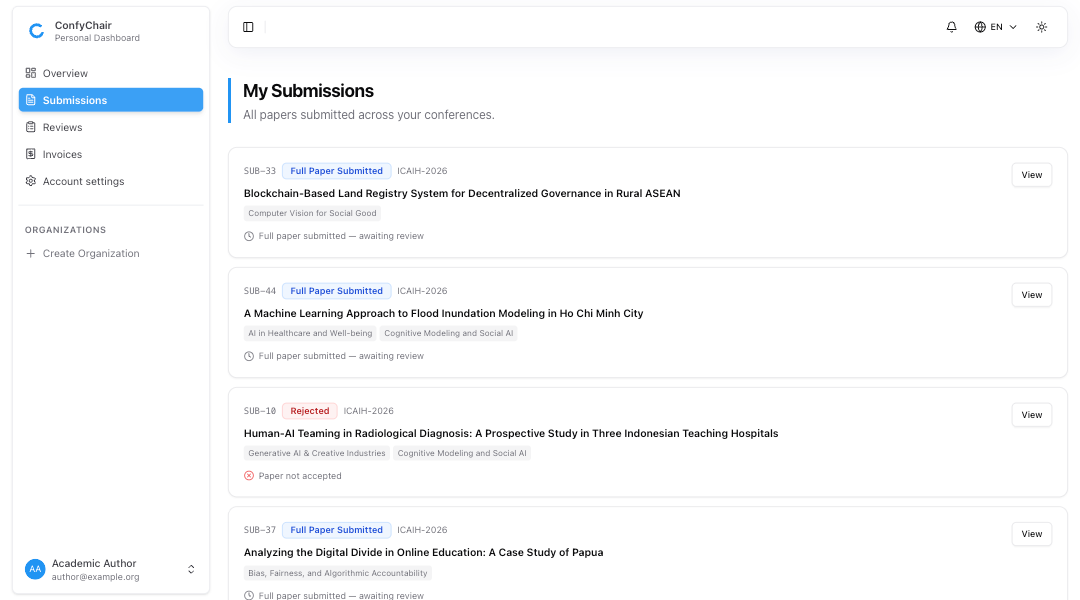
Halaman Pengajuan Konferensi — Satu Konferensi
Pergi ke halaman pengajuan konferensi tertentu di:
/conferences/[slug]/submissions/

2. Status Pengajuan — Apa Artinya Bagi Anda
Pengajuan Anda melewati serangkaian status seiring kemajuan proses review. Status saat ini selalu ditampilkan sebagai lencana berwarna pada kartu pengajuan dan sebagai spanduk yang menonjol di halaman detail pengajuan.
Referensi Status
| Lencana status | Artinya | Diperlukan tindakan? |
|---|---|---|
| Draft | Tersimpan tetapi belum diajukan. Penyelenggara tidak dapat melihatnya. | Selesaikan dan ajukan sebelum batas waktu. |
| Abstrak Diajukan | Abstrak diterima. Menunggu moderasi penyelenggara. | Tidak — Anda masih dapat mengedit abstrak. |
| Abstrak Diterima | Abstrak disetujui. Unggahan makalah lengkap sekarang terbuka. | Unggah makalah lengkap Anda sebelum batas waktu makalah. |
| Abstrak Ditolak | Abstrak tidak diterima. Pengajuan makalah lengkap tidak tersedia. | Baca catatan penyelenggara jika ada. |
| Abstrak Perlu Revisi | Penyelenggara meminta perubahan pada abstrak Anda. | Baca catatan dan perbarui abstrak Anda. |
| Makalah Lengkap Diajukan | Makalah lengkap diterima. Menunggu review. | Tidak — tunggu pembaruan. |
| Dalam Review | Reviewer ditugaskan dan mengevaluasi makalah Anda. | Tidak — review bersifat rahasia. |
| Makalah Perlu Revisi | Penyelenggara meminta perubahan pada makalah Anda. | Baca catatan dan ajukan makalah yang direvisi. |
| Perlu Koreksi | Koreksi teknis diperlukan (format, metadata, dll.). | Terapkan koreksi yang diminta. |
| Diterima | Makalah Anda telah diterima. | Ikuti langkah selanjutnya penyelenggara. |
| Ditolak | Makalah Anda tidak diterima ronde ini. | Baca umpan balik apa pun yang diberikan. |
| Dicabut | Anda atau penyelenggara mencabut pengajuan. | Tidak ada tindakan yang tersedia. |
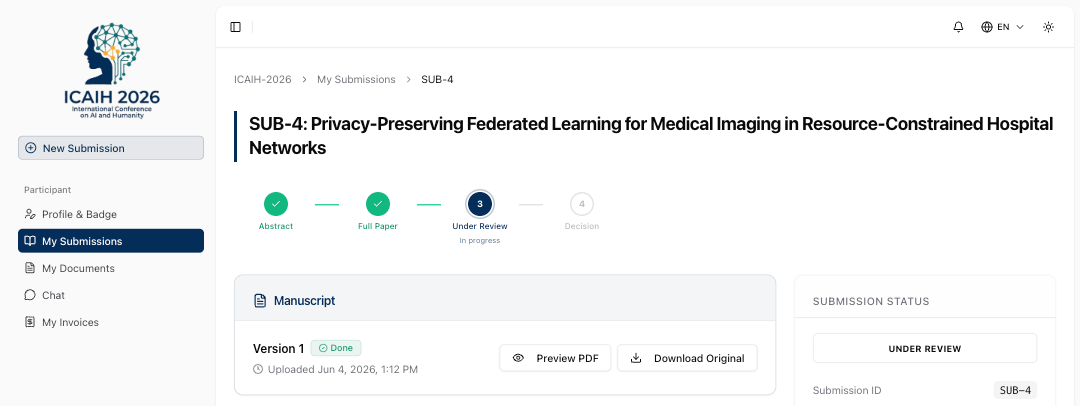
Stepper Kemajuan
Pengajuan → Dalam Review → Keputusan
Abstrak → Makalah Lengkap → Dalam Review → Keputusan
Setiap langkah dikode warna:
- Hijau (tanda centang) — selesai
- Amber (angka/cincin amber) — langkah saat ini
- Oranye (segitiga) — revisi diminta pada langkah ini
- Merah (X) — ditolak pada langkah ini
- Abu-abu — belum tercapai
Draft
Abstrak Diajukan
Abstrak Anda telah diterima. Penyelenggara sedang memoderasi sebelum meneruskannya ke review. Anda masih dapat mengedit detail abstrak selama tahap ini — tombol edit ditampilkan di spanduk status.
Abstrak Diterima
Abstrak Ditolak
Abstrak Anda tidak diterima untuk konferensi ini. Pengajuan makalah lengkap tidak tersedia. Catatan penyelenggara (jika diberikan) ditampilkan di halaman detail.
Abstrak Perlu Revisi
Makalah Lengkap Diajukan
Makalah lengkap Anda telah diterima. Penyelenggara sekarang sedang menugaskan reviewer. Tahap ini dapat memakan waktu beberapa hari hingga beberapa minggu tergantung jadwal konferensi.
Dalam Review
Makalah Perlu Revisi

Ini adalah tanda positif — ini berarti panitia melihat nilai dalam pekerjaan Anda.
Saat Anda melihat status ini:
- Buka halaman detail pengajuan dan baca catatan penyelenggara yang ditampilkan di spanduk status.
- Tangani setiap poin yang diajukan.
- Klik "Ajukan Revisi" untuk membuka formulir edit.
- Unggah file makalah yang direvisi. Dialog changelog akan meminta Anda mendeskripsikan singkat perubahan Anda (opsional tetapi membantu panitia).
Perlu Koreksi
Diterima
Selamat — makalah Anda telah diterima! Spanduk hijau muncul di halaman detail. Tunggu instruksi lebih lanjut dari penyelenggara (biasanya diterima melalui email) mengenai:
- Mengajukan versi camera-ready (final, terformat) dari makalah Anda
- Mendaftar untuk konferensi
- Menyelesaikan formulir transfer hak cipta (jika diperlukan oleh konferensi)
Ditolak
Makalah Anda tidak diterima ronde ini. Spanduk merah muncul. Ini adalah bagian normal dari kehidupan akademik — bahkan makalah yang kuat kadang-kadang ditolak karena kesesuaian, persaingan, atau pendapat reviewer.
3. Halaman Detail Pengajuan
/conferences/[slug]/submissions/[id]/) memberi Anda tampilan lengkap pengajuan Anda. Ini diorganisir sebagai berikut:
- Judul halaman:
SUB-[nomor]: [judul] - Spanduk status dengan tombol tindakan (ketika tindakan diperlukan)
- Stepper kemajuan
-
Kartu Manuskrip — menampilkan file makalah saat ini, nomor versi, dan tautan unduhan (ketika file ada)
-
Kartu Materi Tambahan — muncul ketika konferensi memerlukan materi tambahan (surat pengantar, bukti pendaftaran, dll.)
-
Kartu Umpan Balik Review — muncul ketika penyelenggara telah mempublikasikan review untuk pengajuan Anda
-
Tab — Abstrak, Penulis (lencana jumlah), Etika
- Tab Abstrak: judul, teks abstrak, kata kunci, topik
- Tab Penulis: daftar penulis lengkap dengan afiliasi, negara, dan status verifikasi co-penulis (titik merah menunjukkan co-penulis menolak pengarangan mereka)
- Tab Etika: deklarasi penggunaan AI dan catatan persetujuan penyelenggara Anda
- Kartu Status — nomor pengajuan, status saat ini, tanggal diajukan
- Kartu Riwayat — garis waktu semua perubahan status dan revisi file
4. Menerima Notifikasi
Confychair mengirimkan notifikasi email saat hal penting terjadi dengan pengajuan Anda. Anda akan selalu menerima email saat:
- Pengajuan Anda diterima — konfirmasi dengan nomor pengajuan Anda
- Keputusan dibuat — diterima, ditolak, atau perlu revisi, dengan catatan penyelenggara
- Penyelenggara mengirim pengumuman — pembaruan umum untuk semua penulis (mis. perpanjangan batas waktu, perubahan jadwal)
noreply@confychair.org ke kontak Anda untuk menghindari penyaringan spam.5. Mengedit Pengajuan Anda
Anda dapat mengedit pengajuan Anda — termasuk mengunggah file makalah baru — sementara status Anda berada dalam salah satu keadaan yang dapat diedit:
| Status | Yang dapat Anda lakukan |
|---|---|
| Draft | Selesaikan semua bagian dan ajukan |
| Abstrak Diajukan | Perbarui detail abstrak |
| Abstrak Diterima | Unggah makalah lengkap Anda |
| Abstrak Perlu Revisi | Revisi dan ajukan ulang abstrak |
| Makalah Lengkap Diajukan | Perbarui metadata atau ganti file makalah |
| Makalah Perlu Revisi | Unggah makalah yang direvisi |
| Perlu Koreksi | Terapkan koreksi yang diminta |
Untuk mengedit:
- Navigasikan ke pengajuan Anda (melalui halaman pengajuan konferensi atau dasbor pribadi).
- Klik tombol tindakan di spanduk status, atau pergi langsung ke
/conferences/[slug]/submissions/[id]/edit. - Buat perubahan Anda.
- Perubahan metadata (judul, abstrak, penulis, dll.) memicu dialog "Konfirmasi Perubahan" — masukkan deskripsi singkat tentang apa yang Anda ubah (opsional) dan klik "Simpan Perubahan". Ini membuat entri baru di riwayat revisi.
- Perubahan hanya file (mengganti makalah tanpa mengubah kolom lain) langsung dikonfirmasi — tidak ada dialog changelog yang muncul.
Referensi Cepat
| Saya ingin... | Pergi ke... |
|---|---|
| Lihat semua pengajuan saya | /dashboard/submissions/ |
| Lihat pengajuan untuk satu konferensi | /conferences/[slug]/submissions/ |
| Lihat detail pengajuan dan status | /conferences/[slug]/submissions/[id]/ |
| Edit pengajuan / unggah makalah yang direvisi | /conferences/[slug]/submissions/[id]/edit atau tombol di spanduk status |
| Perbarui alamat email saya | /account/ |
Jika Anda memiliki pertanyaan yang tidak tercakup di sini, hubungi penyelenggara konferensi langsung — informasi kontak mereka ada di halaman publik konferensi.