Getting Started with Confychair
Welcome to Confychair — your starting point for managing, participating in, or reviewing academic conferences online.
What is Confychair?
Confychair is an academic conference management platform designed for universities, research institutions, and scholarly events across Indonesia and Southeast Asia. Organizers use it to set up and run conferences — from opening the call for papers through to final decisions. Authors submit their research papers through the platform, and reviewers evaluate those submissions and provide scores and feedback. Everything happens in one place, accessible from any device.
Creating Your Account
You only need one account to participate in any number of conferences on Confychair.
- Open your browser and go to confychair.org.
- Click Register in the top-right corner.
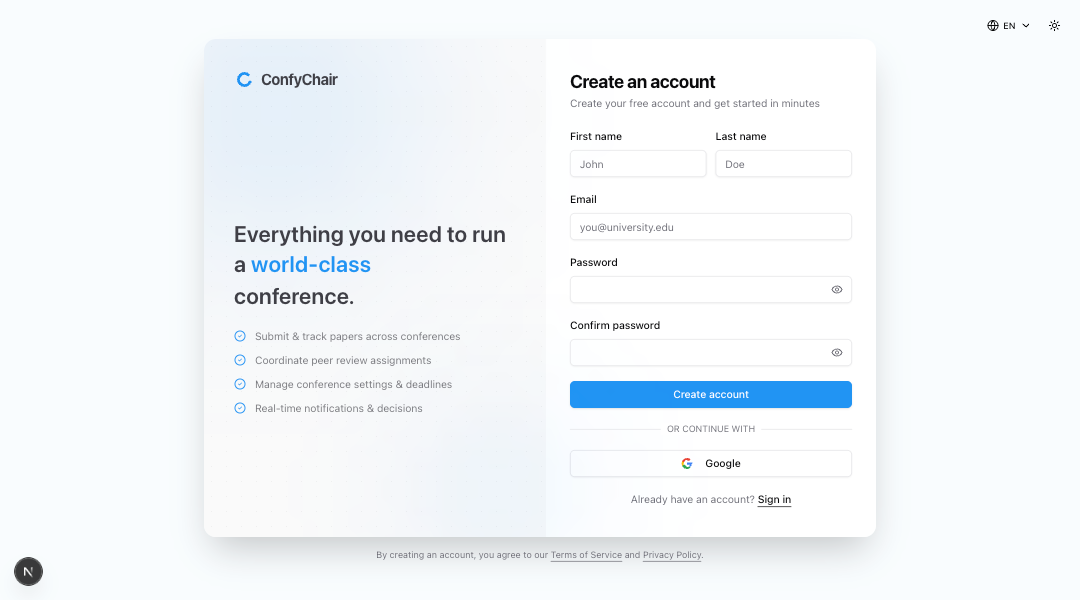
- Fill in the registration form:
- First Name and Last Name
- Email address — use an address you check regularly; important notifications are sent here
- Password and Confirm Password — choose something secure
- Click Create Account.
You will be redirected to the verification page. Check your inbox for an activation email and click the verification link. Once verified, you can sign in to access your dashboard.
- On the registration page, click Continue with Google.
- Sign in to your Google account and grant permission.
You are logged in immediately. No additional form fields are required.
Logging In
Once you have an account, you can log in at any time.
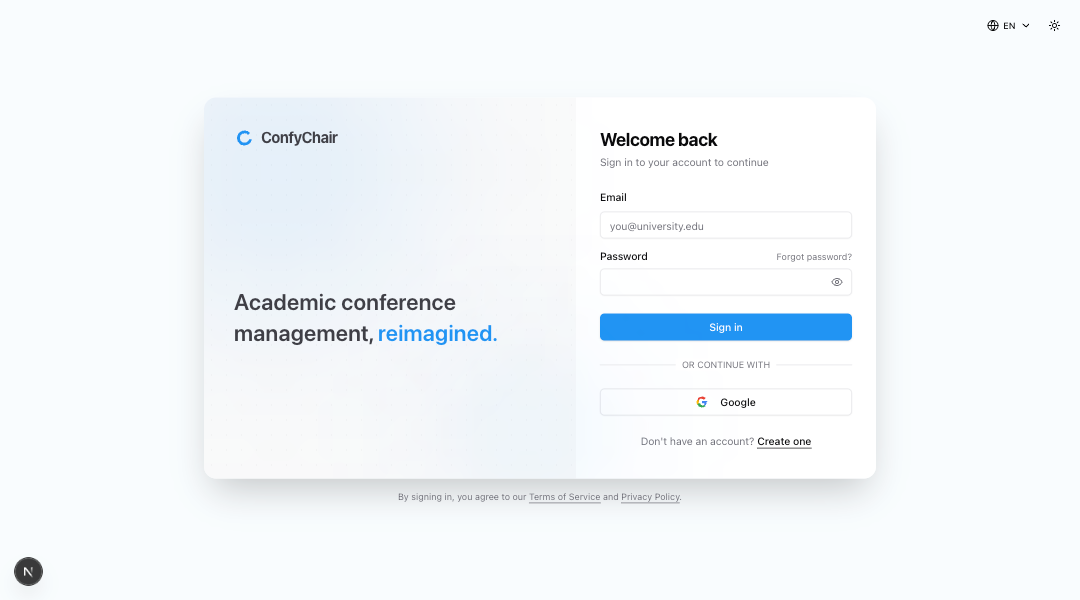
- Go to confychair.org and click Login.
- Enter your email address and password.
- Click Sign In.
You will be taken directly to your personal dashboard.
- On the login page, click Forgot password? — it appears next to the Password label.
- You will be taken to the password reset page. Enter your email address and click Send Reset Link.
- Check your inbox for a password reset email and follow the instructions inside.
- Once submitted, the page confirms that a reset link has been sent. If you do not receive the email, check your spam or junk folder.
Your Personal Dashboard
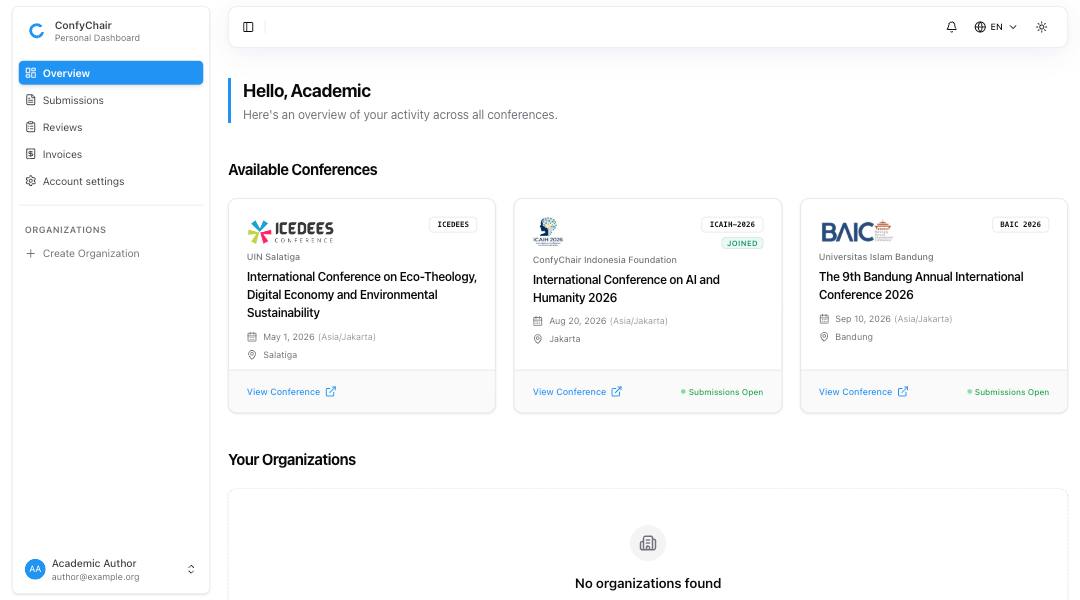
/dashboard/overview. This is your home base on Confychair — it gives you a cross-conference view of everything relevant to you.The dashboard overview shows:
- Available Conferences — conferences you can browse, join, or submit to.
- Your Organizations — organizations (tenants) you belong to, with links to manage them.
Additional pages accessible from the dashboard sidebar:
- Submissions — all papers you have submitted across every conference you are involved in, along with their current status.
- Reviews — all submissions that have been assigned to you for review, across every conference where you are acting as a reviewer.
- Notifications — updates about your submissions, review assignments, and conference announcements.
- Account — your profile and personal settings.
You do not need to remember which conference you were working in last. Everything important surfaces here automatically.
Understanding Roles
| Role | What they do |
|---|---|
| Organizer / Chair | Creates and manages the conference. Controls the call-for-papers dates and settings, invites members, assigns reviewers to submissions, and makes final accept/reject decisions. |
| Reviewer | Evaluates submissions that have been assigned to them. Provides scores, written feedback, and a recommendation. |
| Author | Submits research papers in response to a conference's call for papers. Can view the status of their own submissions and update them before the deadline. |
How to Proceed
Once you are logged in, choose the guide that matches what you need to do:
Setting up a new conference
If you are an academic or event coordinator who wants to create and run a conference on Confychair, start here:
You will learn how to create your organization, set up a conference, configure the call for papers, invite members, and manage the review process.
Submitting a paper
If you have received a call for papers and want to submit your research, start here:
You will learn how to register for the conference, submit your paper, track its status, and upload a revised version if requested.
Reviewing assigned submissions
If a conference organizer has assigned you as a reviewer and you need to evaluate submissions, start here:
You will learn how to access your assigned submissions, complete the review form, submit your score and comments, and manage conflicts of interest.