Viewing and Paying Your Invoice
When you register for a paid conference package, Confychair generates an invoice for you. This guide explains how to find your invoice, choose a payment method, and confirm your payment.
Finding Your Invoice
Invoices can be found in two places:
From the conference page — after registering, the registration card shows a "Go to Dashboard" button. Inside the conference dashboard, open Invoices in the sidebar to see all invoices for that conference.
From your personal dashboard — go to Dashboard → Invoices at
www.confychair.org/dashboard/invoices to see invoices across all conferences in one place.Click any invoice to open the detail page.
Invoice Status
| Status | Meaning |
|---|---|
| Draft | Invoice created by the organizer but not yet sent to you. No action needed yet |
| Sent | Invoice delivered and payment is due — choose a payment method and pay |
| Paid | Payment confirmed. A green PAID stamp appears on the invoice |
| Cancelled | The organizer cancelled this invoice. No payment needed |
| Refunded | Payment was refunded by the organizer |
Invoice Detail Page
When you first open an invoice where the organizer lets you choose how to pay, you will see a payment method picker — the line items and total are hidden at this stage.
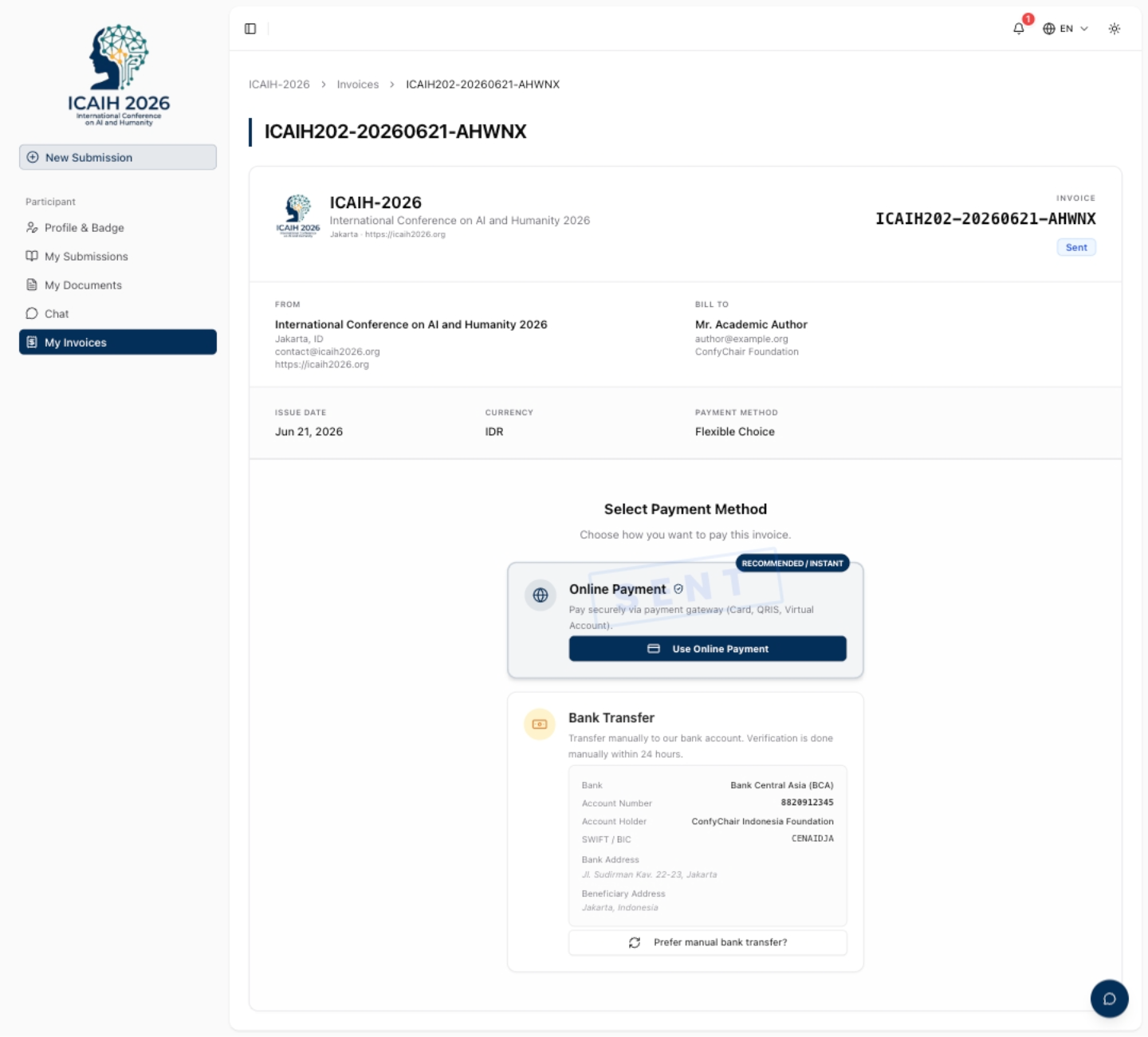
Once you select a payment method, the full detail appears:
- Invoice reference — a unique ID like
ICACSIS-20260528-A3F2B - Bill To — your name, email, affiliation, and address as recorded at registration
- Issue date and due date
- Line items — what you're being charged for (e.g. Attendee Registration – Early Bird)
- Totals breakdown — Subtotal, Platform Fee, Gateway Fee (if online payment), and Total

Choosing a Payment Method
Online Payment (Instant)
Click Use Online Payment to pay via the gateway. You'll be taken to a checkout page where you can select from available methods:
- Bank Virtual Account (BCA, Mandiri, BNI, BRI, Permata, and others)
- QRIS (scan with any mobile banking or e-wallet app)
- E-wallets (GoPay, OVO, Dana, ShopeePay, and others — availability depends on conference currency)
Select your method and click PAY [amount]. A gateway fee is added on top of the invoice total — the exact amount is shown before you confirm.

You'll be redirected to the payment provider's page. After completing payment, return to your invoice — the status will update to Paid automatically once the provider confirms.
Note: Online payment has a minimum amount. For IDR invoices the minimum is Rp 20,000. Below this amount, only bank transfer is available.
Bank Transfer (Manual)
Click I prefer manual transfer to see the organizer's bank account details. Transfer the exact invoice total to the account shown. After transferring:
- Click Upload Payment Proof
- Select your transfer receipt or screenshot (JPG, PNG, or PDF)
- Click Submit
Your invoice will show a "Payment proof submitted — awaiting verification" banner. The organizer will review your proof and manually mark the invoice as paid. You'll receive a notification when this is done.

Downloading the Invoice
Once a payment method has been selected, a Download PDF button appears on the invoice detail page. Click it to download a PDF copy of your invoice for your records.
If Your Invoice is Cancelled
A cancelled invoice shows a red CANCELLED stamp. No payment is required. If you believe your registration should still be active, contact the conference organizer directly.