Submitting a Paper
Submitting a paper to a conference can feel daunting — especially if it is your first time. This guide walks you through every step of the process in Confychair, from finding a conference to receiving your submission confirmation. Take it one step at a time.
1. Finding a Conference
The conference public page shows everything you need before deciding to submit:
- Call for Papers (CFP) — the themes, scope, and topics the conference is looking for
- Submission deadline — the date and time (in the conference's local timezone) by which your paper must be submitted
- Submission guidelines — page limits, formatting requirements, accepted file formats
- Topics list — the subject areas covered by the conference

2. Before You Submit
A little preparation goes a long way. Before you start filling in the form, make sure you have the following ready:
- A Confychair account — if you do not have one yet, register at confychair.org/register. Registration is free and only takes a minute.
- Your paper file — check the conference page for the required file format (PDF or DOCX, depending on the conference), page limit, and any anonymization requirements (some conferences require you to remove author names from the file for blind review).
- Co-author information — for every co-author, you will need:
- Salutation (optional — e.g. Dr., Prof.)
- First name and last name
- Suffix (optional — e.g. PhD, Jr.)
- Institutional affiliation
- Affiliation details (optional — e.g. faculty, department, lab)
- Email address
- Country
3. Starting a Submission
SUBMIT_PAPERS permission) before you can submit. If you have not registered yet, do that first — see Registering for a Conference.
If the submission deadline has passed, the form opens but shows a warning and is disabled. The organizer can override this with a force-open — if you believe you should still be able to submit, contact them directly.
4. Filling the Submission Form
The submission form is divided into numbered sections. A progress bar at the top shows how many sections are complete. Work through them in order — the submit button enables only when all sections are complete and you check the confirmation checkbox at the bottom.
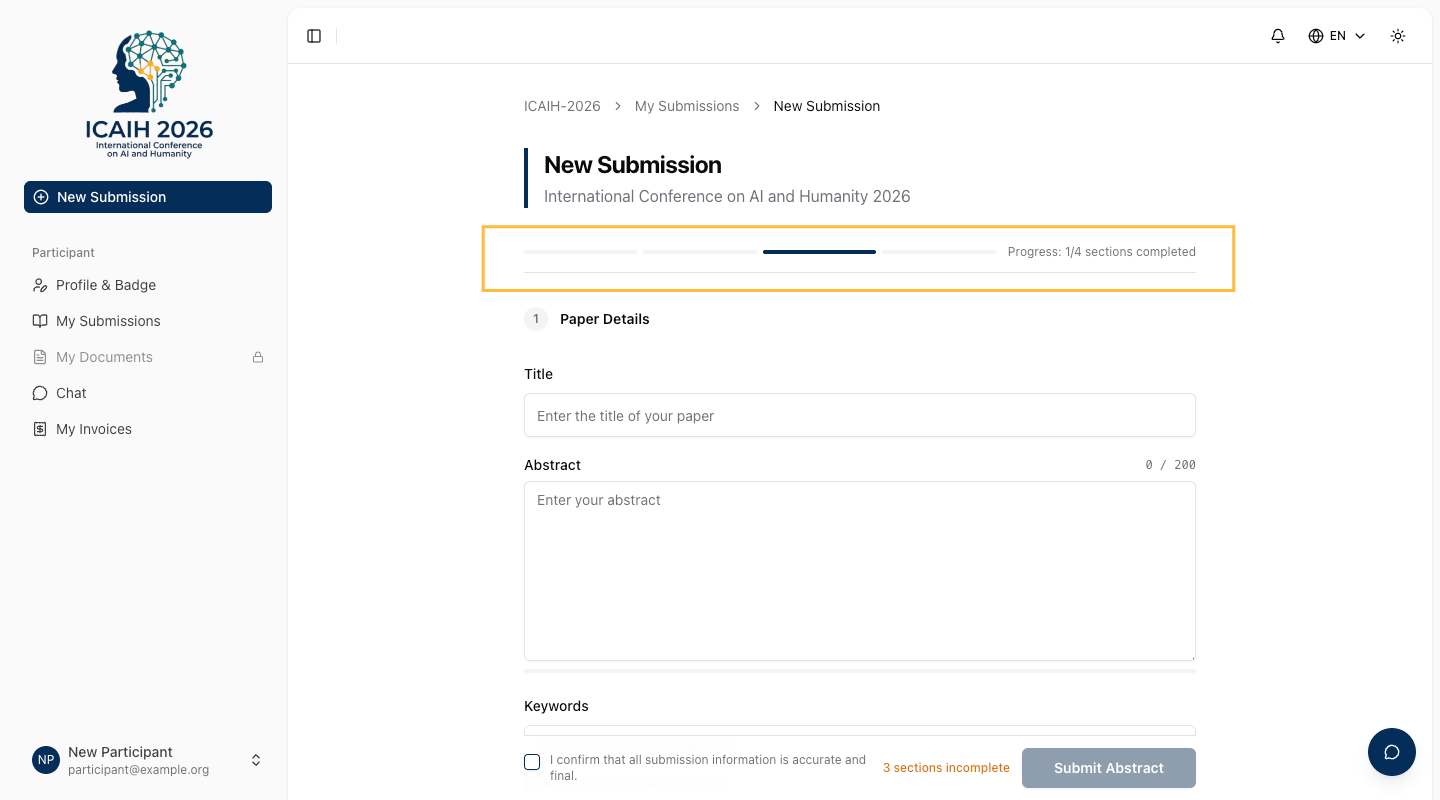
Section 1 — Paper Details
machine learning, NLP, deep learning) to add multiple keywords at once. At least one keyword is required.
Section 2 — Research Topics
Select all topics from the conference's predefined list that are relevant to your paper. You must select at least one. If your paper spans multiple topics, select all that apply — this helps the organizer assign the right reviewers.
Topics appear as selectable cards. Selected topics are highlighted.

Section 3 — Authors
This section lists everyone who contributed to the paper.
- Your own entry is pre-filled based on your Confychair profile and your registration data for this conference. Review it and update any fields if needed.
- Click "Add Author" for each additional author.
- For each author, fill in: salutation (optional), first name, last name, suffix (optional), email, affiliation, affiliation details (optional), and country.
- Mark exactly one author as the Corresponding Author — click the star icon on the author card to set them. The corresponding author receives official communications from the conference.
- Use the up/down arrows on each author card to reorder authors. The order here is the order that will appear in the program.
- The form validates that:
- All author emails are unique (no duplicates)
- You (the submitter) are listed as one of the authors — your account email must appear in the author list
- At least one author is marked as corresponding
Some conferences also collect the following on each author card (these fields only appear when the conference has publisher compliance mode enabled):
- ORCID — the author's ORCID iD (e.g.
0000-0002-1825-0097). May be required. - CRediT roles — the specific contribution roles for each author (e.g. Conceptualization, Writing, Data Curation). May be required.

Section 4 — AI & Ethical Declarations
This section always contains two items:
-
AI usage checkbox — Check this if you used Generative AI tools (such as ChatGPT) for drafting, rewriting, or generating content. If checked, a text field appears where you must describe how AI was used (e.g. "ChatGPT was used to improve the grammar and flow of the English translation").
-
Organizer AI consent — You must check this box to acknowledge that the organizer may use AI tools for similarity checking, reviewer assignment assistance, or content summarization. This box is required and the form cannot be submitted without it.

- Ethics — A checkbox to indicate whether your research required ethics approval. If checked, fields appear for the approval reference number and an ethics statement.
- Funding — Declare any funding sources (funder name + grant number). Check "No funding was received" if none applies.
- Declarations — Dropdown fields for Conflict of Interest, Data Availability, and Code Availability statements, plus consent checkboxes for participant data and publication.
Section 5 — Paper File
This section appears after the AI declarations and is always present for direct-submission conferences. For abstract-first conferences, it only appears after your abstract has been accepted (see Section 6 below).
5. Submitting
A small summary card appears showing the number of authors, topics, and keywords you have entered.
- Title, Abstract & Keywords
- At least 1 topic selected
- Author info complete
- Unique author emails
- Submitter must be an author
- Corresponding author assigned
- AI & Ethical Declarations complete
- Paper file uploaded (when applicable)
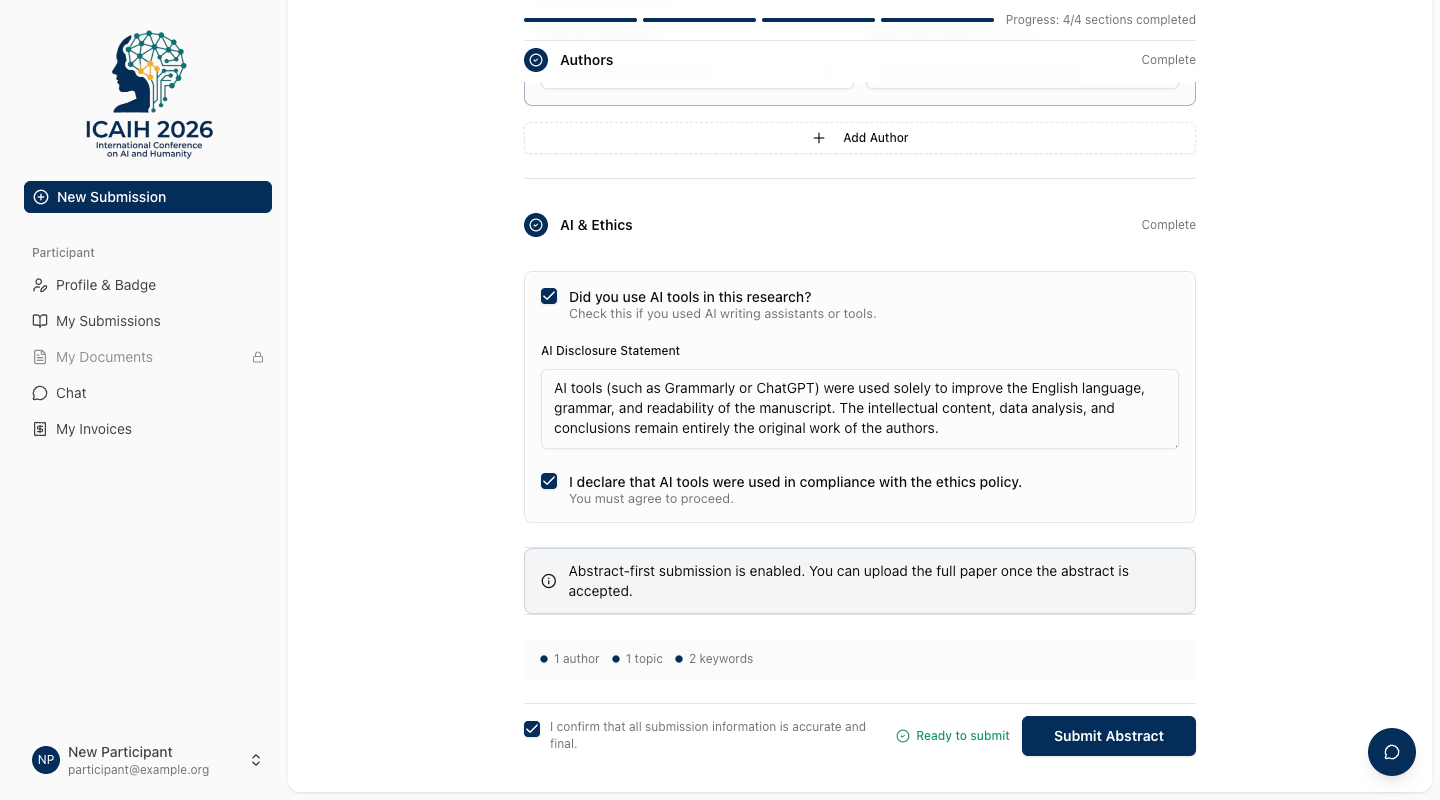
Once all items are complete and you have checked the confirmation box, click the submit button. The button label changes based on your context:
| Context | Button label |
|---|---|
| New submission with abstract only | Submit Abstract |
| New submission with paper file | Submit Paper |
| Editing — metadata only changed | Update Metadata |
| Editing — metadata and file changed | Update Metadata & File |

After submitting, Confychair will:
- Assign your submission a submission number (e.g. SUB-42).
- Redirect you to your submission detail page with your submission number and a status summary.
- Send a confirmation email to you and all listed co-authors.
Keep your submission number — you will need it if you contact the organizers with questions.
6. Abstract-First Conferences (2-Stage Submission)
- Stage 1 — Abstract submission: Submit your title, abstract, keywords, topics, authors, and AI declarations by the abstract deadline. You do not need a full paper file yet. The form shows an informational notice: "This conference uses abstract-first review. Upload your full paper after your abstract has been accepted."
- Stage 2 — Full paper submission: After the organizer reviews and accepts your abstract, the submission form becomes available for you to upload your full paper.
If the conference uses this process, the submission form will clearly indicate which stage is currently open, and you will see separate abstract and paper deadlines on the "My Submissions" page.
7. Editing After Submission
You can update your submission — including replacing the paper file — as long as it is in an editable status. Click the action button in the status banner or navigate to the edit page directly.
8. Submission Confirmation
After a successful submission, you are redirected to your submission detail page. The page shows:
- Your submission number (e.g. SUB-42)
- A status banner indicating the current stage
- A progress stepper showing where you are in the review pipeline
- Your paper details (title, abstract, keywords, topics)
- Your author list
- Revision history

A confirmation email is also sent to you and all co-authors. If you do not receive the email within a few minutes, check your spam folder and make sure the email address on your account is correct.